
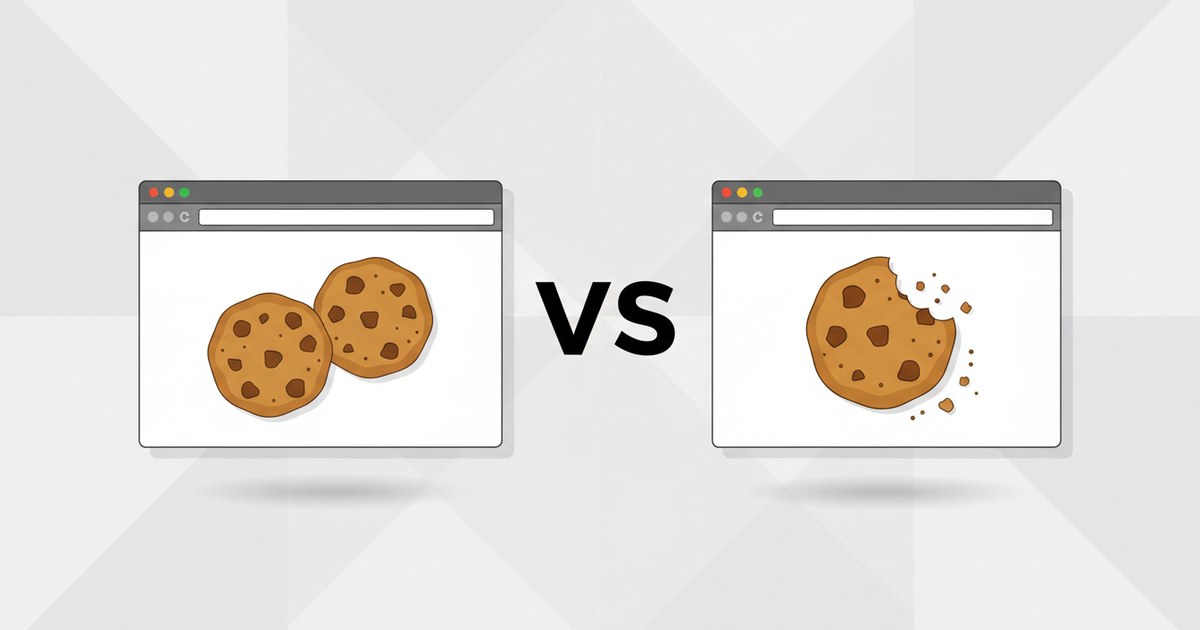
Session Cookie vs Persistent Cookie: What Each One Does
Open your browser's developer tools, click into a site's cookies, and you'll usually see two different things sitting in the "Expires" column: the word "Session" on one row, and an actual date on the next. That's the whole session cookie vs persistent cookie question, right there in front of you.
One cookie has an expiry date written on it. The other doesn't. Everything else people tell you about these two types, including the popular idea that session cookies vanish the moment you close your browser, is a simplification that hasn't kept up with how modern browsers actually behave.
This article defines both types by the one thing that actually separates them (a single line in an HTTP header), shows you what each looks like in practice, and corrects the three things almost every other guide on this topic gets wrong or leaves out.
How Session Cookies and Persistent Cookies Actually Work
What is a session cookie?
A session cookie is any cookie that doesn't carry an Expires or Max-Age attribute. That's the entire definition, straight from the cookie specification, not from how long it happens to stick around. When a server sends a Set-Cookie header with neither attribute, the browser keeps the cookie "until the current session is over," and it's the browser, not the website, that decides what "session" means. According to RFC 6265, section 4.1.2.2, this has been the standard's wording since 2011.
Here's what a session cookie looks like coming off a server:
Set-Cookie: PHPSESSID=8f14e45fceea167a5a36dedd4bad3ef; Path=/; HttpOnlyNo date. No age in seconds. Just a name, a value, and maybe a couple of security flags (which sit in the same response as the security headers a server sends).
If you're running PHP, you'll recognize PHPSESSID immediately. It's the cookie PHP sets by default to track a visitor's session, and by default its lifetime attribute is set to 0, meaning "until the browser closes," per the official PHP session configuration documentation. Most login systems, shopping cart trackers, and CSRF-protection cookies start life this way.
What is a persistent cookie?
A persistent cookie is a cookie with an Expires or a Max-Age attribute attached. The moment a server includes either one, the browser writes the cookie to disk and keeps it around until that specific point, independent of tab closes, restarts, or long gaps between visits.
The two attributes do the same job in different units. Expires takes an actual calendar date, formatted as an HTTP date (the same format the Expires caching header uses). Max-Age takes a number of seconds counted from right now. A worked example:
Set-Cookie: prefs=darkmode; Max-Age=2592000; Path=/2,592,000 seconds works out to exactly 30 days. If a developer sets both attributes on the same cookie with conflicting values, Max-Age wins. That's a rule stated directly in MDN's guide to HTTP cookies: "Max-Age is less error-prone, and takes precedence when both are set."
Session cookie vs persistent cookie at a glance
| Session cookie | Persistent cookie | |
|---|---|---|
| Created by | No Expires and no Max-Age attribute | Expires or Max-Age attribute present |
| Shown in DevTools as | The word "Session" | A specific date |
| Meant to end when | The browser decides the session is over | The requested date arrives, or the browser's own cap kicks in first |
| Typical job | Login state, shopping cart during checkout, CSRF tokens | "Remember me," language preference, analytics IDs, ad targeting |
| What the browser is allowed to do to it | Restore it after a restart, evict it under memory pressure | Shorten a requested lifetime to its own maximum, evict it early too |
What happens to session cookies when I close the browser?
Here's where the popular explanation quietly falls apart. Most guides on this topic say session cookies are "stored in memory and deleted the instant you close the browser." That was a reasonably accurate description in, say, 2010. It stopped being accurate for a lot of people around 2012.
Chrome added a "Continue where you left off" feature (Chrome 19, back in 2012) that restores your open tabs after a restart, and to make that restoration feel invisible, it restores your session cookies right along with them. Eric Lawrence, a former Chrome and Edge engineer, documented this directly in a 2019 post titled "Surprise: Undead Session Cookies." His summary is blunt: with that setting on, closing the browser does not delete session cookies. Edge, being Chromium-based, inherits the same behavior, and Firefox's own session restore does something comparable.
Brave patched around it in 2023 after a bug report describing exactly the confusing part, that Chromium browsers "persist session cookies across page closes and browser resets," even while sessionStorage gets wiped clean on the same restart. Two things that sound like they should behave identically don't.
So does closing your browser ever actually clear session cookies? Sometimes, yes. If you've turned on the setting that clears cookies and site data on browser exit, or if the browser genuinely was never configured to restore your session, session cookies do get wiped as advertised.
But treating "closes the browser" as a reliable logout mechanism is a mistake. If you're building a login flow and counting on the browser to log people out when they close the tab, that assumption deserves a second look before you ship anything.
How long does a persistent cookie last?
A persistent cookie lasts exactly as long as its Expires or Max-Age value says, up to a hard ceiling the browser enforces on its own. In Chrome, that ceiling is 400 days.
Chrome shipped this cap in version 104, released August 2022. If a server asks for a cookie lifetime longer than 400 days, Chrome doesn't reject the cookie outright, it just quietly reduces the expiry to 400 days out, per Chrome's own developer documentation on the change. The figure wasn't arbitrary: Chrome's engineering team measured real-world cookies and found roughly 20% of them requested an expiry past 400 days, and the number lands close to thirteen months, long enough to cover a once-a-year visitor without leaving cookies alive indefinitely.
The same limit now lives in the draft standard itself, RFC 6265bis, section 5.5, which states that browsers "MUST limit the maximum age of the cookie" and that value "SHOULD NOT be greater than 400 days." Worth being precise here: at the time of writing, this is a Chrome behavior and a draft-standard recommendation, not something every browser has shipped. Firefox and Safari had given the proposal a positive nod but hadn't implemented the same numeric cap as of the most recent Chrome documentation.
Safari plays by a different, stricter set of rules for cookies set through JavaScript rather than a server response header. Apple's Intelligent Tracking Prevention limits script-set cookies far more aggressively than 400 days, sometimes down to seven days of Safari use without interaction. That's a separate mechanism from the general 400-day cap, and it only applies to cookies set client-side with document.cookie, not ones your server sets through the Set-Cookie header.
One more wrinkle worth knowing: browsers reserve the right to delete any cookie early, persistent or not, if a domain has set too many, or if the device is under memory pressure. Nothing about either cookie type is a storage guarantee, it's more like asking someone to hold a package for you. They might still toss it early if their garage fills up.
Cookie vs session: two different clocks
This is the part that trips up a lot of beginners asking "what is cookie and session" as if they're the same thing. They're not.
A cookie is a small piece of data stored in the browser. A session, in the server-side sense, is a chunk of data stored on the server, usually tied to that cookie by an ID. Two separate clocks are running here, and they don't have to agree.
Take PHP as a concrete example. Its default session.cookie_lifetime is 0, meaning the cookie itself behaves as a session cookie. But its default session.gc_maxlifetime is 1,440 seconds, 24 minutes, after which the server is free to discard that session's data entirely.
So you can have a PHPSESSID cookie physically still present in your browser, unexpired, while the server-side session it refers to has already been thrown away. Load a page in that state and the server has no idea who you are anymore. That's not a bug, it's two independent expiry systems doing their own separate jobs.
The OWASP Session Management Cheat Sheet recommends idle timeouts of 2 to 5 minutes for high-value applications like banking, and 15 to 30 minutes for lower-risk sites. None of those numbers live inside the cookie. They live in server-side session configuration, a different setting entirely from whatever's written in the Set-Cookie header.
Is a login cookie a session cookie?
Sometimes. It genuinely depends on whether you ticked "Remember me."
Log into a site without checking that box, and a well-built login system gives you a session cookie: no Expires, no Max-Age, gone (theoretically) when the browser session ends. Check "Remember me," and the same login flow typically swaps in a persistent cookie with a real expiry date, often set weeks or months out, so you skip the login screen on your next visit.
This mental model, that "Remember me" equals persistent and unchecked equals session, is exactly what most people expect, and when a site's code doesn't honor that expectation, people notice and complain. Developer bug trackers have logged reports along the lines of "the Remember me checkbox doesn't behave as expected." Those aren't edge cases; they're the direct consequence of a mismatch between what a checkbox promises and what the cookie attribute actually delivers.
OWASP's guidance leans toward non-persistent cookies for the actual session identifier, since a persistent login token sitting on a shared or public computer is a bigger risk than one that theoretically dies with the browser session. A well-built system often splits the difference: a short-lived session cookie for the active login, paired with a separate, longer-lived "remember this device" token that re-establishes a fresh session on your next visit.
How to check which type a site is using
You don't have to take anyone's word for which type of cookie a site is setting. You can read it yourself, and it takes about a minute.
- Open your browser's developer tools (F12 on Windows and Linux, Cmd+Option+I on a Mac) and click the "Application" tab in Chrome or Edge, or "Storage" in Firefox. You should see a "Cookies" section in the left-hand panel.
- Click your site's domain under Cookies. You should see a table listing every cookie name, along with columns for Value, Domain, Path, and Expires / Max-Age.
- Look at the Expires / Max-Age column for each row. If it reads "Session," that cookie has no Expires or Max-Age attribute and is, by definition, a session cookie. If it shows a specific date, that's a persistent cookie, possibly shortened by the browser's own cap.
- If you want the same reading without opening DevTools yourself, run the site's URL through cookiecheck.tools. The report lists each cookie's lifetime and purpose in plain language, flags anything set for longer than 400 days, and flags session-style cookie names that are missing the HttpOnly flag they'd normally need.
If you'd rather inspect the raw Set-Cookie header directly, cookiecheck.tools' sister tool httpcheck.tools shows you the full response headers for a given URL. Its guide to what each HTTP response header actually does is a useful companion when debugging something upstream of the cookie itself.
Common mistakes to avoid
A few patterns show up over and over when people audit their own sites:
- A cookie named something like
session_idthat's actually been given a ten-yearExpiresdate. The name suggests temporary, the attribute says otherwise, and Chrome will silently shorten it to 400 days anyway. - Relying on "the browser closing" as a logout mechanism, when Chromium and Firefox's session restore features mean that assumption fails for a meaningful share of real users.
- Setting both
ExpiresandMax-Agewith different values on the same cookie and being surprised whenMax-Agequietly overrides the date you set. - Making a consent decision purely on whether a cookie is session or persistent, rather than on what it's actually used for. Regulatory guidance, including the UK's ICO guidance on storage and access technologies, treats the purpose of a cookie, not its lifetime, as the deciding factor for whether consent is required. A session cookie that tracks you across sites for advertising is still a third-party tracking cookie, regardless of how briefly it lives.
If a cookiecheck.tools report flags a long_lifetime issue or a missing HttpOnly attribute on something that looks like a session token, treat it as a prompt to check whether that cookie was ever meant to expire on a real date, or whether it should have stayed a plain session cookie all along.
Frequently Asked Questions
What is a session cookie?
A session cookie is a cookie sent without an Expires or Max-Age attribute in its Set-Cookie header. Per the cookie specification, the browser keeps it "until the current session is over," a duration the browser itself defines rather than the website. In DevTools, it shows up as the word "Session" in the Expires column instead of a date, and it's the type typically used for login state, shopping cart contents during checkout, and CSRF protection tokens.
How long does a persistent cookie last?
A persistent cookie lasts as long as the Expires or Max-Age value the server requested, capped at 400 days in Chrome since version 104 (shipped August 2022) and in the draft cookie standard, RFC 6265bis. If a server asks for a longer lifetime, Chrome reduces it to 400 days rather than rejecting the cookie outright. Firefox and Safari had not adopted the identical numeric cap as of Chrome's own documentation on the change, and Safari applies separate, often shorter limits to cookies set through JavaScript specifically.
Is a login cookie a session cookie?
It depends on whether "Remember me" (or an equivalent option) was selected at login. Without it, a login cookie is typically a session cookie with no expiry attribute. With it checked, the same login flow usually issues a persistent cookie with a set expiry date, often weeks or months out, so the visitor stays logged in across browser restarts. OWASP's session management guidance generally recommends keeping the actual session identifier non-persistent, using a separate longer-lived token for "remember this device" functionality instead.
What happens to session cookies when I close the browser?
In many modern browsers, nothing happens immediately, which surprises a lot of people. Chrome and Edge have restored session cookies across restarts since Chrome 19 in 2012 as part of their "continue where you left off" tab-restore feature, and Firefox's session restore behaves similarly, according to documentation from a former Chrome and Edge engineer. Session cookies are only reliably deleted on browser close if a setting to clear cookies and site data on exit is explicitly turned on, or if the browser wasn't configured to restore the previous session at all.